Buffer Progress — User Guide
A Jira Cloud dashboard gadget that visualises buffer / fever-chart style progress: work completed (story points) versus time elapsed for one or more epics or saved filters.
Quick start (video)
Short walkthrough: install the gadget on a Jira dashboard, configure fields and tracks, and read the buffer chart.
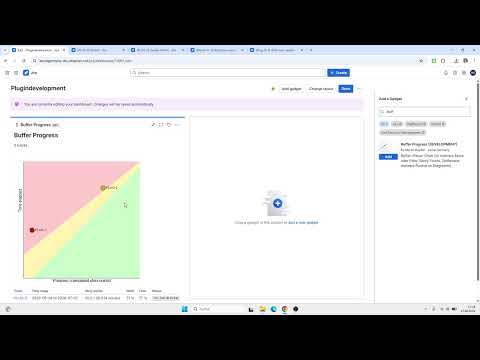
The embedded player does not work when this page is opened as a local file (file://).
Use the link above, the hosted page at
aerial-germany.de,
or a local web server (e.g. npx serve in the docs folder).
Overview
Buffer Progress helps teams see whether delivery is ahead of schedule, within the buffer band, or behind — using the same idea as a fever chart in agile planning. You can add up to 8 tracks per gadget; each track appears as one point on a shared chart and one row in the summary table.
The user interface is available in English and German (when the Jira user locale starts with de).
Status colours
- Green — work progress is ahead of time progress
- Yellow — within the buffer band (on track)
- Red — work progress is behind time progress
Requirements
- Jira Cloud
- Jira Software recommended for loading epic child issues (Agile epic API)
- A story points field on issues (system or custom field)
- For epic tracks: start and due dates on fields you configure in the gadget
- For filter tracks: a favourite saved filter and manual start/end dates per track
Install and add the gadget
- Install Buffer Progress from the Atlassian Marketplace on your Jira Cloud site.
- Open the dashboard where you want the chart.
- Click Add gadget (or edit the dashboard) and search for Buffer Progress.
- Add the gadget, then open Configure to set fields and tracks.
- Click Save and wait for the chart and table to load.
Each dashboard gadget instance has its own configuration. You can add multiple Buffer Progress gadgets to different dashboards with different tracks.
Configure the gadget
Global fields
| Setting | Description |
|---|---|
| Story points field | Required. Used to sum done and total story points for all tracks. |
| Start date field | Required when at least one epic track exists. Applied to the parent epic issue. |
| Due date field | Required when at least one epic track exists. Use a customfield_… entry if the system due date is empty. |
| Child issue type | Optional. Restricts the parent JQL search (e.g. Story). Leave empty to include all child types; epic-linked children are also loaded via the Jira Software API. |
Start and due fields are not required if you only use filter tracks (those use per-track dates instead).
Tracks (up to 8)
Each track is one point on the buffer chart. Click Add track to add more (maximum 8).
Epic track
- Set Source to Epic.
- Enter the parent key (e.g.
PROJ-123). - Optionally set a display name (shown on the chart and in the table).
Story points are aggregated from child issues (via parent = EPIC JQL and epic links).
Time progress uses the epic’s start and due values from the global date fields.
Filter track
- Set Source to Filter.
- Select a favourite saved filter (your JQL filter).
- Set start date and end date for this track’s time window.
- Optionally set a display name.
Story points are summed from all issues returned by the filter’s JQL.
Reading the dashboard view
- Chart — one marker per track; horizontal axis = time elapsed, vertical axis = work (story points completed).
- Summary table — time range, story points (done / total), work %, time %, and status lozenge.
- Epic links — track names for epics link to the issue in Jira.
- Single track — additional progress bars show time and work percentages.
Warnings you may see: some tracks failed to load (others still show); JQL result truncated (not all issues counted); or zero story points on a track (check field and values).
Permissions and data
Buffer Progress only reads data from Jira. It does not create, update, or delete issues.
Required app scopes:
read:jira-workread:epic:jira-softwareread:issue-details:jiraread:jql:jira
The app runs on Atlassian Forge (Atlassian-hosted). It is designed to be eligible for Runs on Atlassian. See our privacy policy for how data is handled.
Troubleshooting
| Symptom | What to try |
|---|---|
| “Please select the story points field” | Open Configure, select the story points field, click Save, then hard-refresh the dashboard (Ctrl+F5). |
| “Start or due date missing” (epic) | Set global start/due fields; ensure the epic has values in those fields. If you use a custom due field, also set Jira’s system Due date on the epic — the app falls back to it automatically. |
| “Epic children (Jira Software) failed (400)” | Common on team-managed (next-gen) projects. The app now uses parent = … and Epic Link JQL instead; upgrade to the latest app version and refresh the dashboard. |
| “No track could be loaded” | Check epic keys, filter selection, and dates; read the per-track error in the warning message. |
| Epic shows no children | Confirm child issues exist; use Jira Software; check optional child issue type filter. |
| 401 / unauthorized | Site admin: reinstall or upgrade the app after scope changes (forge install --upgrade). |
Version history
| Version | Notes |
|---|---|
| 1.0.0 | Initial release: multi-track buffer chart, epic and filter tracks, summary table, EN/DE UI. |
Support
Buffer Progress is published on the Atlassian Marketplace by Aerial Germany (Martin Keydel). Documentation and support policies are hosted at aerial-germany.de. This page is the official Service Level Agreement (SLA) reference for paid support.
Service Level Agreement
| Item | Details |
|---|---|
| SLA URL | https://aerial-germany.de/buffer-progress-manual.html#support |
| Target response time | 2 business days (first response to a new support request) |
| Time zone | Europe/Berlin (CET / CEST) |
| Hours of operation | 09:00 – 17:00 |
| Days of operation | Monday – Friday (excluding German public holidays) |
| Support email |
How to get help
- Marketplace support request — from the app listing, use Get support / Submit support request (preferred for billing and license questions).
- Email — write to with your Jira site URL, app version, and a short description or screenshot of the issue.
- Self-service — check the Troubleshooting section above for common configuration errors.
Support covers installation, configuration, and defects in Buffer Progress. It does not include custom Jira workflow design, data migration, or issues caused by third-party apps. Critical production outages are handled with best effort within the hours above.